Sign in to JUJU-PERFECT AI craft design software
Sign in to use your credits, or create a free account to get 5 credits to start.
Guide
How to convert an image for laser cutting and engraving
Getting a clean engraving is mostly about the file. A photo that looks great on your phone usually engraves as a muddy grey smear unless it's prepared for the laser first. This guide walks through how image conversion for laser cutting actually works — and how to skip the manual steps entirely.
Start with the right source image
The conversion is only as good as what you feed it. Before anything else, pick a photo with a clear subject, even lighting, and good separation between the subject and the background. High-contrast images — a face against a plain wall, a pet on grass, a logo on white — convert far better than a busy scene where everything is the same brightness. Resolution helps too: a larger, sharper photo gives the converter more detail to work with, while a tiny low-light snapshot leaves it guessing.
The conversion workflow, step by step
- Isolate the subject. Remove or simplify the background so the laser engraves what matters, not the clutter behind it.
- Fix contrast and tone. Engraving is essentially a brightness map — darker areas burn deeper. The image needs its contrast remapped so the subject reads clearly at engraving depth, not as flat grey.
- Choose raster or vector. A photographic engraving stays raster; an outline, stencil, or cut shape becomes vector linework (see below).
- Match it to your material and laser. Wood, acrylic, slate, and metal each need different contrast curves, and a diode laser behaves differently from a CO2 or fiber laser.
- Export a clean file. An SVG for cutting and vector work, or a high-resolution raster for photo engraving — ready to import without redrawing anything.
Raster engraving vs. vector cutting — which do you need?
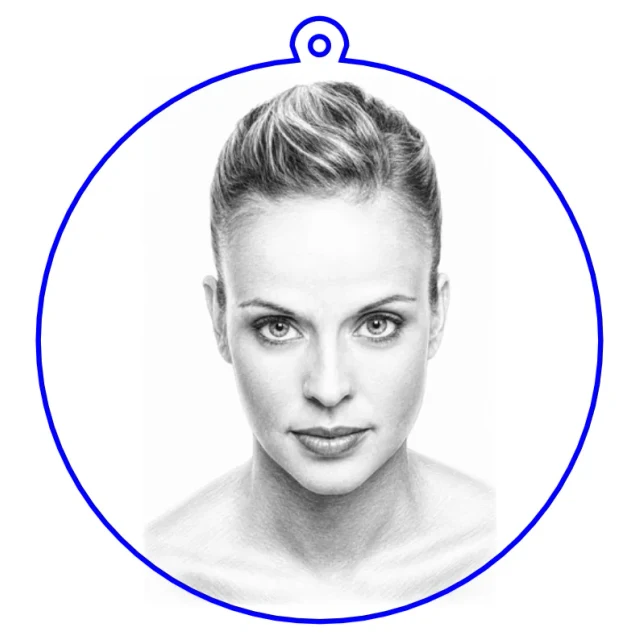
Raster engraving is for photos and shaded artwork: the laser sweeps back and forth like an inkjet, burning each pixel to a depth set by its brightness. Vector cutting and engraving follows lines — outlines, text, cut paths — and is what you need for keychain shapes, stencils, and anything the laser must cut all the way through. Many real projects use both: a raster portrait engraved inside a vector-cut outline, for example. The key is that a portrait should not be naively "traced" into vectors, and a cut line should not be left as a fuzzy raster edge. Picking the right mode per element is half of a good conversion.
Match the file to your material and laser
The same image needs different preparation for different substrates. Light wood takes fine detail and mid-tones; dark slate wants a high-contrast, almost stencil-like treatment so the engraving pops white against black; clear acrylic for edge-lit work needs contour linework rather than shading. Your laser technology matters just as much — CO2, fiber, diode, UV, and MOPA lasers all mark differently, so the contrast that looks perfect on one can blow out on another. Preparing one generic file and hoping it works on every material is the most common reason engravings come out disappointing.
Common mistakes that ruin an engraving
- Leaving the background in, so the laser wastes time burning a grey box around the subject.
- Engraving a low-contrast photo as-is, which comes out as an indistinct smudge.
- Auto-tracing a photograph into vectors, producing thousands of jagged paths.
- Using one file for every material instead of tuning contrast per substrate.
- Forgetting cut lines and holes — common on keychains and ornaments — so the piece can't be assembled after engraving.
Skip the manual cleanup
Every step above can be done by hand across raster, vector, and laser software, but it's slow and easy to get wrong. JUJU-PERFECT's image converter does the whole pipeline for you: upload a photo (or just describe what you want), pick the style, material, and laser, and download an engraving-ready file with contrast, background, and linework already handled. From one upload you can get both a laser-ready SVG and a full-colour UV-print PNG, and product flows like the photo-to-keychain generator even place the cut outline and ring hole for you. Start with 5 free credits, no card required. Paid credits include a commercial license to sell what you make. Paid-credit files are original JUJU-PERFECT generated artwork for physical products, with no extra per-file license fee. Bring only photos and references you have permission to use.